Resetting your Password#
If you ever forget your password, you will be able reset it yourself. In order to do this, you will need to create a couple of security questions when you first arrive at the College that will be used later on to prove your identity and reset your password.
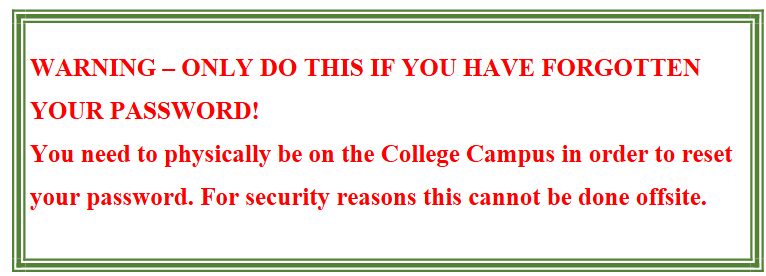
You will not be able to reset your password from a Media Room PC as you will be unable to login.
We suggest using your laptop or tablet instead. This process can be done on a smartphone but the Password Reset Portal does not display very well on some phones. If your smartphone has problems displaying the Password Reset Portal, try rotating your phone 90
degrees into landscape mode. This often cures the display issues
To Reset Your Password#
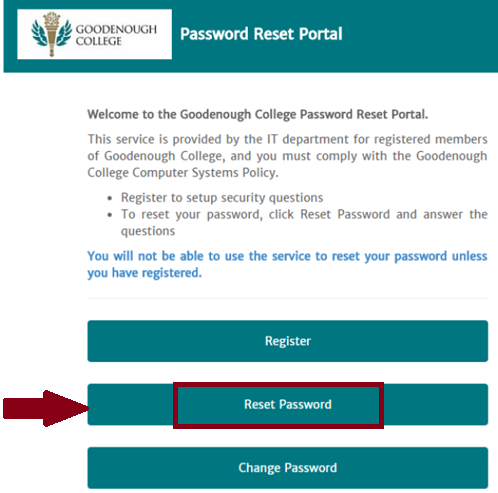
Open a browser e.g. Chrome, Mozilla or Edge and go to the Password Portal
Click on Reset Password
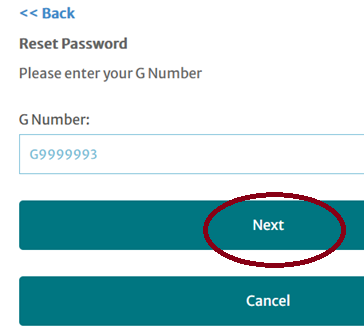
Enter your G number (Goodcard Number) eg G9999993 and click Next
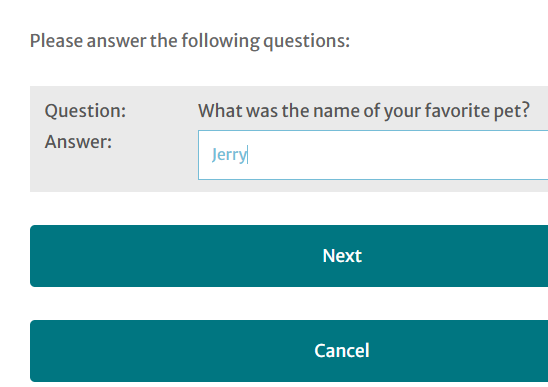
Enter your security questions.
For example, your favourite pet is named Jerry, so enter his name in the Answer box.
You may be asked for a second security question, such as your favourite colour or favourite food.
Enter an answer to to this second question and proceed with Next.
Enter your new password and then enter it a second time to confirm it.
(Do not change the Unlock My Account setting.)
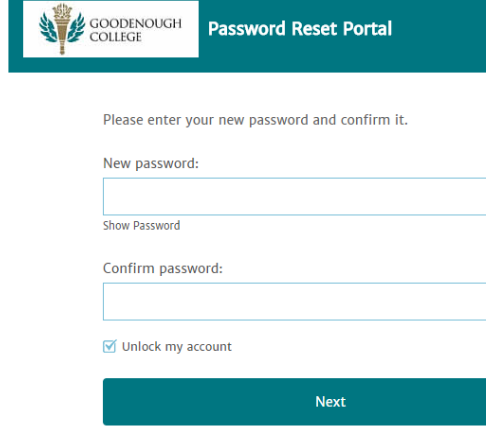
Click Next to continue.
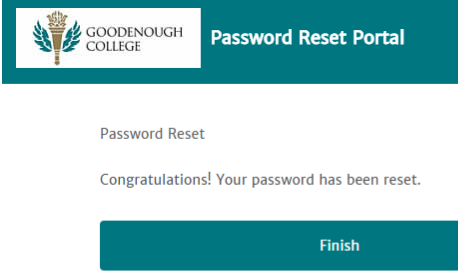
When the congratulations screen appears, just click the Finish Button and you’re all done.
Your password has been changed and you can now login to the PCs in the Media Rooms as well as
Papercut (printing) and The Square (clubs and societies and events intranet).